
Summary
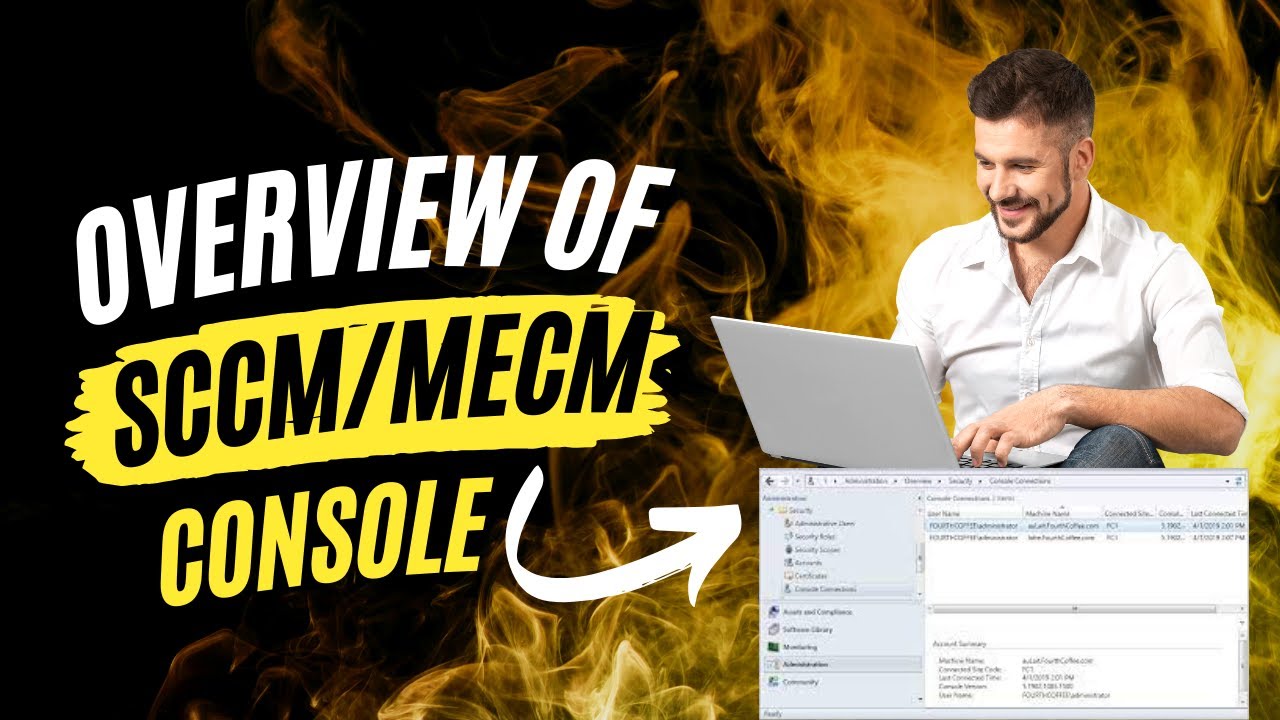
In this session, we delve into the intricacies of the SCCM console, focusing on how to open and connect it to various sites. 🖥️ We'll explore the critical components of the console, such as the ribbon, navigation panel, workspace, and more. Understanding these elements is essential for effective console management.
Highlights
- 🔍 Opening the SCCM Console: You can easily open the SCCM console by clicking the start button, typing "Configuration Manager," and selecting the console from the configuration manager folder.
- 🔗 Connecting to Sites: Upon opening the console, it attempts to connect to the primary site or cache. If it's installed on a new machine, you'll need to manually connect it by entering the fully qualified domain name of your desired site.
- 🖱️ Using the Ribbon: The ribbon at the top provides quick access to functions like saving searches and other essential operations.
Key Insights
- 🗺️ Navigation Panel: This area allows you to explore user collections, device collections, software metering, compliance settings, and more.
- 📂 Workspace Customization: Customize the workspace by rearranging or removing folders to suit your role, such as a desktop engineer or admin.
- 🔎 Search Bar: Use this tool to quickly find machines or users by typing relevant keywords.
- 📋 List View and Detail Panel: The list view displays items you're exploring, while the detail panel provides in-depth information about selected items.
Conclusion
This overview provides a fundamental understanding of the SCCM console's layout and functionality. In future sessions, we'll cover configuring SCCM discovery methods and boundaries, enhancing your management capabilities. Stay tuned for more insights! 🎉
Watch the Video
Video URL: https://www.youtube.com/watch?v=mUXOgZ9l9r4

